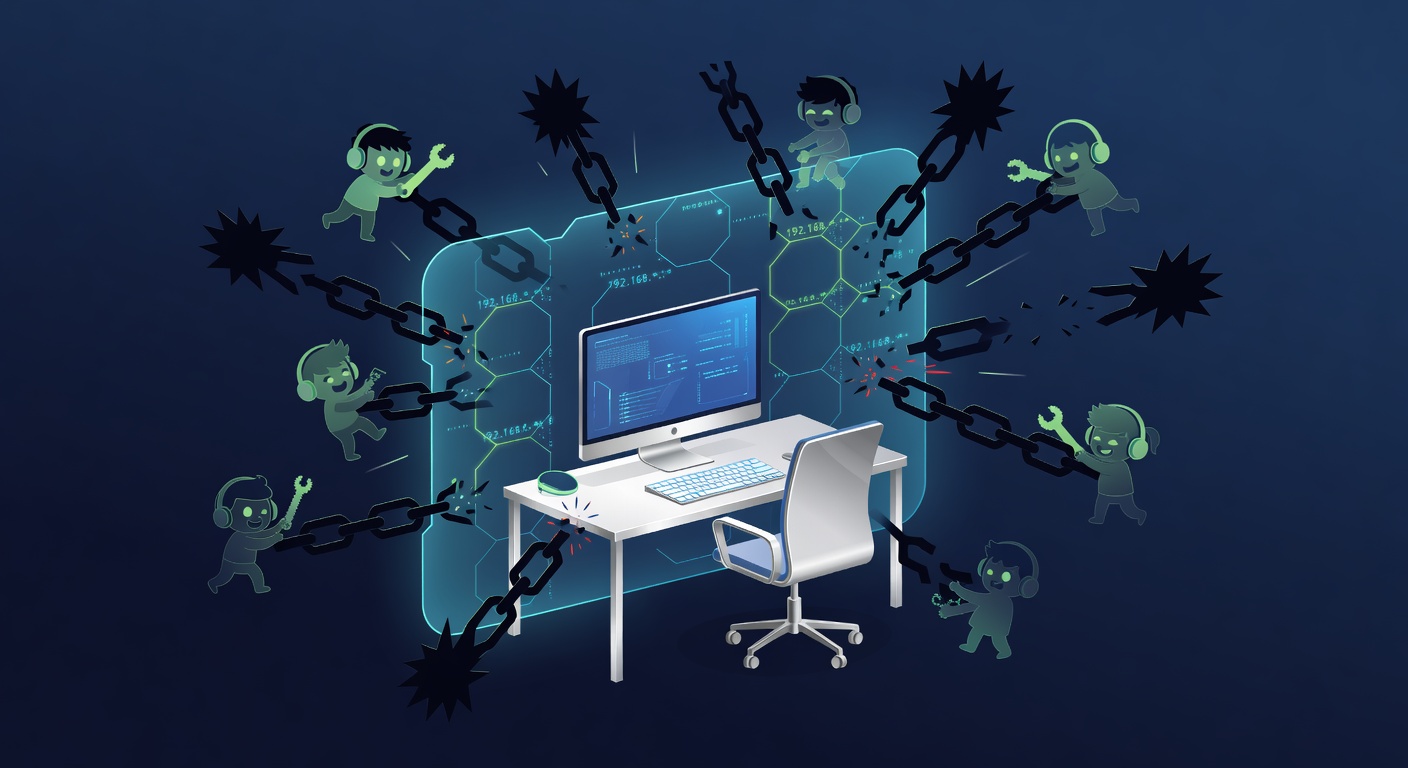
Your Home Office Is Under Siege (And Your Kids Know It)
Remote work has exploded, but so have the risks—and we're not just talking about cyber threats. Between accidental spills, curious fingers on your keyboard, and the temptation to let kids borrow your work laptop, your home setup is more vulnerable than you think. Here's how to actually protect it.
Your Home Office Is Under Siege (And Your Kids Know It)
Let me paint a scenario: You're on an important video call. Your kid wanders in asking for a snack. You step away for 30 seconds to grab them some crackers. In that half-minute, they could be clicking links, typing in your password, or knocking over your coffee into your keyboard. Sounds dramatic? It happens constantly.
With over 35 million Americans now working from home (and that number keeps climbing), we've all had to become amateur IT security experts. But honestly? Most of us are pretty bad at it. We're trying to balance productivity, parenting, and security all at once—and something usually gives. Let me help you make sure it's not your work equipment.
The Simple Lock That Everyone Forgets
Here's the embarrassing truth: the easiest way to protect your work computer takes literally three seconds.
Lock your screen when you step away. I know, I know. It sounds painfully obvious. But think about how many times you've stepped away from your desk without locking your computer. Even for bathroom breaks. Even when you're just getting coffee.
When you work from home, your computer is in a physical space where other people live. Your kids, your partner, your visiting in-laws—they all have access. A locked screen is your first (and sometimes only) line of defense against accidental chaos or, worse, actual security issues.
Most companies have what's called a "Clean Desk Policy" these days. Check if yours does. Many of these policies require automatic screen locks after just a few minutes of inactivity. If your company doesn't have one yet, consider setting one up yourself in your computer settings. It's a small habit that could save you massive headaches.
The Accident That Costs You Everything
Here's something nobody wants to talk about: accidents happen. Kids spill juice. Pets knock over water bottles. You set your coffee down and forget about it. One moment of chaos can destroy your work setup.
This is where accidental damage protection (ADP) becomes your best friend—and I'm not exaggerating.
Think about it: a decent work laptop costs $1,000 to $2,000. Repairs from accidental damage? Sometimes they cost more than the device is worth. We're talking $500+ for screen replacements, water damage repairs, or motherboard fixes. But with ADP or computer insurance, you're looking at a flat deductible—usually $100 to $300—and peace of mind.
You have options here. Some people get insurance through dedicated providers like Worth Ave Group. Others go straight to the manufacturer. If you use a Mac, Apple Care+ is solid. If you're on a PC, many vendors offer their own protection plans. Lenovo claims users can save between 28% to 80% on repair costs with ADP. That's not chump change.
Yeah, insurance feels like you're throwing money away until something actually breaks. Then you're writing a thank-you note to your past self for being smart enough to buy it.
What's Your Backup Plan When Everything Goes Wrong?
Let's say the worst happens. Your laptop takes a water bath and stops working. Now what?
If you're in the office, IT can hand you a replacement and get you back online in an hour. When you're working from home, especially if your kids caused the damage, you're suddenly scrambling. Do you call your boss and admit your kid broke your work computer? Do you rush to Best Buy? Do you wait for a replacement to ship?
Having a backup plan isn't paranoid—it's practical.
Think through this now, before it happens:
Does your company have loaner equipment you can request?
Could you use a personal laptop temporarily?
Who do you contact first—your manager, HR, or IT?
How quickly can you get alternative hardware?
Should you have a secondary device set up and ready?
Even just having a conversation with your manager about this stuff beforehand makes everything smoother. Trust me, they'd much rather hear about a contingency plan than an emergency.
The Password Chaos You're Living In
How many passwords do you have? Seriously, think about it. Work email, Slack, project management tools, cloud storage, VPNs, authentication apps... the list is endless.
Most people handle this terribly. They use the same password everywhere (nightmare fuel for security), or they keep a list in their notes app (slightly less terrible, but still bad), or they just forget and reset passwords constantly.
Get a password manager. This isn't a nice-to-have. This is essential.
A good password manager like 1Password, LastPass, or Dashlane stores all your passwords behind one master password. You only need to remember one thing. They generate strong passwords, autofill forms, and sync across your devices. When your kid steals your laptop for 30 seconds, at least they can't log into everything without your master password.
Even better? Pair your password manager with multi-factor authentication (MFA).
MFA means that even if someone gets your password, they can't access your accounts without a second form of verification—usually a code on your phone. So if your kid somehow cracks your password (unlikely, but let's imagine), they still can't get into your work email or cloud storage without your phone. Some password managers like Duo have MFA built right in.
This is real security, not security theater.
The "But It's Just for 10 Minutes" Mistake
I see this constantly: a parent lets their kid use the work laptop "just for a minute" to watch a video, or play a game, or finish some schoolwork.
Don't do this.
I get it. You don't want to buy your kids separate tech. You don't want to deal with them being bored while you're trying to work. But letting family members use your work computer is a disaster waiting to happen.
Security-wise: Kids click on things. They download things. They could accidentally visit malicious sites or download malware that compromises your entire company's network. Most companies specifically prohibit this in their Acceptable Use Policy for a reason.
Practically speaking: Someone's going to spill something. A keyboard gets sticky. A screen gets cracked. You're liable, and you're buying the replacement.
Professionally: You've completely lost control of what's on that device. Your work files, client information, confidential documents—all of it is now accessible to people who definitely don't need access to it.
Set a boundary here. Buy cheap used tablets for the kids if you have to. Set up a family computer if budget allows. Make it clear that your work laptop is off-limits. Your employer will thank you, your IT department will thank you, and honestly, your stress levels will drop significantly.
The Real Takeaway
Working from home is amazing. No commute, more flexibility, quality time with family—until it's not, because your work equipment is totally compromised.
But protecting it doesn't require you to become a cybersecurity expert. It's just:
Lock your screen every single time you step away
Get insurance for accidents (they will happen)
Have a backup plan for when things go wrong
Use a password manager and MFA to prevent unauthorized access
Keep work equipment for work only
These aren't sexy solutions. They're not trendy. But they work. Your future self—the one who doesn't have to pay $800 for laptop repairs or explain to your boss why your work computer now has mysterious files on it—will be grateful.
Tags: ['work from home security', 'remote work tips', 'cybersecurity for remote employees', 'home office protection', 'password management', 'multi-factor authentication', 'work from home best practices']